Last updated: September 7, 2026
What touch typing actually means
Touch typing is typing without looking at the keyboard, using a consistent mapping of fingers to keys so your hands can move on muscle memory alone. It's the single biggest unlock for anyone starting from hunt-and-peck typing — most of the WPM ceiling in early-stage typing isn't about finger speed, it's about the time lost glancing down and re-finding your place.
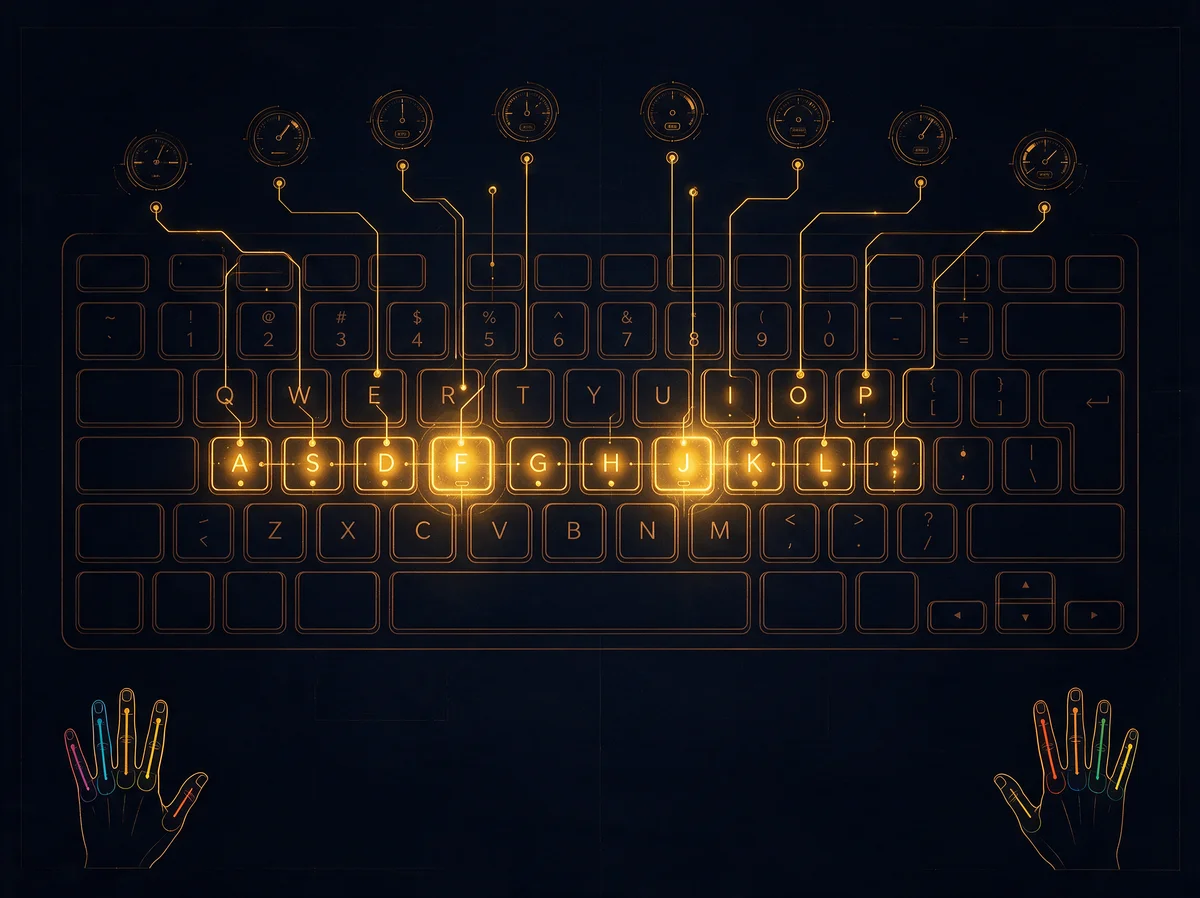
Learn the home row first
Rest your left hand on A S D F and your right hand on J K L ;. Your index fingers stay on F and J — most keyboards have a small raised nub on both keys so you can find them by feel. Every other key is reached by moving a finger out from home row and immediately returning to it.
The standard finger map
- Left pinky:
Q A Zand the far-left keys - Left ring:
W S X - Left middle:
E D C - Left index:
R F VandT G B - Right index:
Y H NandU J M - Right middle:
I K , - Right ring:
O L . - Right pinky:
P ; /and the far-right keys - Thumbs: spacebar
It feels unnatural at first, especially for the pinky fingers. That's normal — it improves quickly with repetition and gets worse if you revert to whichever finger is "easiest" in the moment.
Resist the urge to look down
Every time you glance at the keyboard to confirm a key, you reinforce hunt-and-peck habits and lose the time savings touch typing is supposed to give you. If you genuinely don't know where a key is yet, it's faster long-term to pause, think about the finger map, and get it right blind than to peek and get it right by sight.
Expect a temporary slowdown
If you're switching from an established hunt-and-peck habit to proper touch typing, your WPM will likely drop before it improves. This is expected — you're replacing a familiar-but-limited pattern with an unfamiliar-but-scalable one. Push through the first week or two; the ceiling on the other side is much higher.
Where to practice
Start with short, low-pressure simulations at 15 or 30 seconds, focused entirely on correct finger placement rather than speed. Once the finger map feels automatic rather than effortful, gradually introduce longer sessions and let speed follow naturally.
Once your finger placement is solid, our guide on improving your typing speed picks up from here.
Worked example: what the transition actually feels like
Say you currently hunt-and-peck at around 25 WPM. In the first week of deliberately switching to the finger map above, it's realistic to drop into the high teens — you're consciously routing every keystroke through a finger assignment you haven't automated yet, which is slower than even a familiar bad habit. That dip is temporary: as the finger map becomes automatic rather than something you're actively thinking about, your WPM climbs back past your old 25 WPM baseline and keeps going, because touch typing has a much higher ceiling than hunt-and-peck ever could. The beginner's roadmap covers this same dip-then-climb pattern in more depth, including what comes after it.
Frequently Asked Questions
How long until my fingers stop needing to think about where keys are?
It varies by how much you practice, but for most people the finger map starts feeling automatic within the first couple of weeks of consistent, deliberate practice — not from typing volume alone, but specifically from resisting the urge to look down described above.
Is it okay to peek at the keyboard occasionally while I'm still learning?
It slows the process down, but it isn't fatal. Every glance reinforces hunt-and-peck slightly, so the guideline is to genuinely try recalling the finger map first, and only look as a last resort — not to ban looking outright on day one.
Which fingers are hardest to train?
The pinky fingers, consistently. They're responsible for punctuation and the far outer keys, and they're the weakest, least-practiced fingers for almost everyone coming from hunt-and-peck. Expect them to feel the most unnatural for the longest.
Should I learn touch typing before worrying about posture and wrist position?
They're worth building together rather than strictly sequencing — bad wrist habits formed while learning the finger map are harder to correct later. The keyboard ergonomics guide covers the setup side in full and pairs directly with the finger map above.
What comes after I've got the basics down?
Speed. Once finger placement is automatic rather than effortful, our guide on improving your typing speed picks up exactly from there.